In this notebook, we’ll be segmenting road networks from aerial imagery.
At the end, you will have trained a model to predict road segments over Port Vila.
!pip install -q torch xbatcher segmentation-models-pytorchimport geocube.api.core
import geopandas as gpd
import matplotlib.pyplot as plt
import rioxarray
import segmentation_models_pytorch as smp
import torch
import tqdm
import xarray as xr
import xbatcher.loaders.torchData preprocessing
Get image data from OpenAerialMap
OpenAerialMap images over Vanuatu - https://
map .openaerialmap .org / # /168 .3819580078125 , -16 .688816956180833,7
We’ll be using a Maxar Worldview-2 image with a spatial resolution of 32cm over Port Vila on 2024 October 19.
image_url = "https://oin-hotosm-temp.s3.us-east-1.amazonaws.com/676733089f511a0001cc98b6/0/676733089f511a0001cc98b7.tif"The RGB images are distributed in a Cloud-optimized GeoTIFF (COG) format.
We’ll follow https://
Note: We set overview_level=2 to get a lower resolution image.
The spatial resolutions at different overview levels are:
Level -1 (native): 0.32 meters
Level 0: 0.64 meters
Level 1: 1.28 meters
Level 2: 2.57 meters
rda = rioxarray.open_rasterio(filename=image_url, overview_level=2)
rda
# Check spatial resolution in meters
rda.rio.resolution()# Check coordinate reference system
rda.rio.crs.to_string()# Check bounding box extent
bbox = rda.rio.bounds()
bboxThe image in an xarray.DataArray can be plotted using .plot.imshow(rgb="band")
rda.plot.imshow(rgb="band")There are some black NoData/NaN areas, let’s crop them out using
.rio.clip_box.
rda_portvila = rda.rio.clip_box(
    minx=18732000, miny=-2012000, maxx=18742000, maxy=-2002000
)rda_portvila.plot.imshow(rgb="band")bbox_portvila = rda_portvila.rio.bounds()
bbox_portvilaLoad road linestrings from shapefile
Read from zipfile containing “Roads_Vanuatu_Cleaned_UNOSAT.shp”
into a geopandas
gdf_roads = gpd.read_file(filename="Roads_VUT.zip")
gdf_roads.head()
Reproject vector roads to match aerial image
The vector road shapefile are in EPSG:4326, and we will need to reproject it to EPSG:3857 to match the RGB image.
gdf_roads_3857 = gdf_roads.to_crs(crs="EPSG:3857")Next, we’ll also clip the roads to the bounding box extent of the RGB image.
gdf_roads_portvila = gdf_roads_3857.clip(mask=bbox_portvila)Plot the clipped vector roads using
.plot()
gdf_roads_portvila.plot()Rasterize road lines
The vector road lines need to be converted into a raster format for the machine learning model.
We’ll first buffer the road lines to become polygons, and then rasterize them using
geocube.api.core.make_geocube.
# Assume all roads are 8 meters in width
gdf_roads_portvila.geometry = gdf_roads_portvila.buffer(distance=8)
rds_roads = geocube.api.core.make_geocube(
vector_data=gdf_roads_portvila,
like=rda_portvila,
measurements=["FID_Road_w"],
)# Convert to binary where 0=no_roads, 1=roads
rda_roads = rds_roads.FID_Road_w.notnull()rda_roads.plot.imshow()Stack RGB image and road mask together
We now have an RGB aerial image and rasterized Road map,
both in an xarray.DataArray format with the same
spatial resolution and bounding box spatial extent.
Let’s stack them together using
xarray.merge.
ds_image_and_mask = xr.merge(
    objects=[rda_portvila.rename("image"), rda_roads.rename("mask")],
    join="override",
)
ds_image_and_mask
Double check to see that resulting xarray.Dataset’s image and mask looks ok.
# Create subplot with RGB image on the left and Road mask on the right
fig, axs = plt.subplots(ncols=2, figsize=(11.5, 4.5), sharey=True)
ds_image_and_mask.image.plot.imshow(ax=axs[0], rgb="band")
axs[0].set_title("Maxar RGB image")
ds_image_and_mask.mask.plot.imshow(ax=axs[1], cmap="Blues")
axs[1].set_title("Road mask")
plt.show()
Dataloader and Model architecture
Now let’s set up our torch DataLoader and a UNet model!
Create data chips with xbatcher
The entire image size (~3800x3800 pixels) is too large to fit in memory, so let’s create 256x256 pixel chips using a library called xbatcher that will also help us create a torch Dataset and DataLoader in a few lines of code.
References:
# Define batch generators
X_bgen = xbatcher.BatchGenerator(
    ds_image_and_mask["image"], input_dims={"y": 256, "x": 256}
)
y_bgen = xbatcher.BatchGenerator(
    ds_image_and_mask["mask"], input_dims={"y": 256, "x": 256}
)
# Map batches to a PyTorch-compatible dataset
dataset = xbatcher.loaders.torch.MapDataset(X_generator=X_bgen, y_generator=y_bgen)
# Create a dataloader
dataloader = torch.utils.data.DataLoader(dataset=dataset, batch_size=32)UNet Model
For simplicity, we’ll use a pre-designed model architecture from
https://
model = torch.hub.load(
    repo_or_dir="mateuszbuda/brain-segmentation-pytorch",
    model="unet",
    trust_repo=True,
    in_channels=3,
    out_channels=1,
    init_features=32,
    pretrained=True,
)
if torch.cuda.is_available():
model = model.to(device="cuda")modelTrain the neural network
Now is the time to train the UNet model! We’ll need to:
Choose a loss function and optimizer. Here we’re using a DiceLoss with the Adam optimizer.
Configure training hyperparameters such as the learning rate (
lr) and number of epochs (max_epochs) or iterations over the entire training dataset.Construct the main training loop to:
get a mini-batch from the DataLoader
pass the mini-batch data into the model to get a prediction
minimize the error (or loss) between the prediction and groundtruth
Let’s see how this is done!
# Setup loss function and optimizer
loss_dice = smp.losses.DiceLoss(mode="binary")
optimizer = torch.optim.Adam(params=model.parameters(), lr=0.001)
# Main training loop
max_epochs: int = 10
size = len(dataloader.dataset)
for epoch in tqdm.tqdm(iterable=range(max_epochs)):
for i, batch in enumerate(dataloader):
# Split data into input (x) and target (y)
image, mask = batch
# assert image.shape == (2, 3, 128, 128), image.shape
# assert mask.shape == (2, 128, 128), mask.shape
assert image.device == torch.device("cpu") # Data is on CPU
# Move data to GPU if available
if torch.cuda.is_available():
image = image.to(device="cuda") # Move data to GPU
assert image.device == torch.device("cuda:0") # Data is on GPU now!
mask = mask.to(device="cuda")
# Pass data into neural network model
prediction = model(x=image.float())
# Compute prediction error
loss = loss_dice(
y_pred=prediction.squeeze(dim=1), y_true=mask.to(dtype=torch.float32)
)
# Backpropagation (to minimize loss)
loss.backward()
optimizer.step()
optimizer.zero_grad()
# Report metrics
current = (i + 1) * len(image)
print(f"loss: {loss:>7f} [{current:>5d}/{size:>5d}]")Inference results
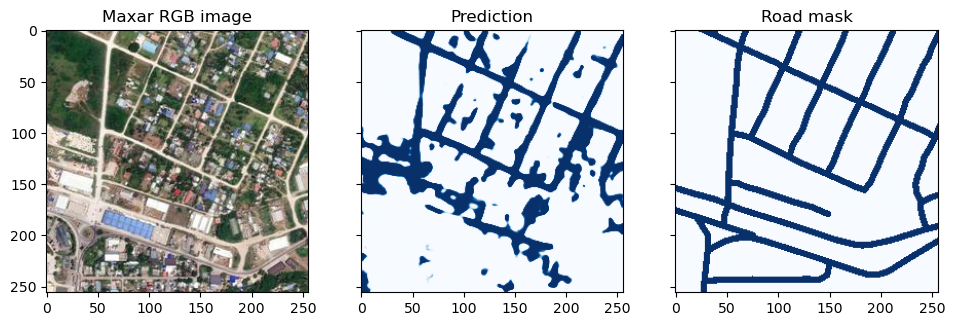
Besides monitoring the loss value, it is also good to calculate a metric like Precision, Recall or F1-score. Let’s first run the model in ‘inference’ mode to get predictions.
index = 21  # TODO change this to check a different image
image, mask = dataloader.dataset[index]
with torch.inference_mode():
    pred = model(x=image.unsqueeze(dim=0).to(device="cuda").float())
    pred = pred.cpu().squeeze(dim=(0, 1))
Now that we have the predicted road image, we can compute some metrics.
# compute statistics for true positive, false positive, false negative and true negative "pixels"
tp, fp, fn, tn = smp.metrics.get_stats(
    output=pred, target=mask, mode="binary", threshold=0.5
)
f1_score = smp.metrics.f1_score(tp=tp, fp=fp, fn=fn, tn=tn, reduction="micro")
precision = smp.metrics.precision(
    tp=tp, fp=fp, fn=fn, tn=tn, reduction="micro-imagewise"
)
recall = smp.metrics.recall(tp=tp, fp=fp, fn=fn, tn=tn, reduction="micro-imagewise")
print(f"F1 Score: {f1_score:.4f}, Precision: {precision:.4f}, Recall: {recall:.4f}")
Finally, let’s compare the model predicted road to the ‘groundtruth’ road mask by visualizing it side by side as below.
# Create subplot with RGB image on the left, prediction in middle, and Road mask on the right
fig, axs = plt.subplots(ncols=3, figsize=(11.5, 4.5), sharey=True)
axs[0].imshow(image.permute(1, 2, 0))
axs[0].set_title("Maxar RGB image")
axs[1].imshow(pred, cmap="Blues", vmin=0, vmax=1)
axs[1].set_title("Prediction")
axs[2].imshow(mask, cmap="Blues")
axs[2].set_title("Road mask")
plt.show()
Let’s save the RGB image and output prediction to a GeoTIFF file.
coords_image = dataloader.dataset.X_generator[index].coords
rgb_image = xr.DataArray(data=image, coords=coords_image)
rgb_image.rio.to_raster(raster_path="rgb_image.tif", driver="COG")
coords_roads = dataloader.dataset.y_generator[index].coords
pred_roads = xr.DataArray(data=pred, coords=coords_roads)
pred_roads.rio.to_raster(raster_path="predicted_roads.tif", driver="COG")You can now download the *.tif files from the left sidebar,
and put them into a desktop GIS to view. It is also possible to
convert the predicted raster roads into a vector polygon using
QGIS’s Raster -> Conversion -> Polygonize function that is
based on the gdal_polygonize
program.